
Practicing chords on a real keyboard builds better habits than tapping a screen alone. Looty Chords supports USB MIDI devices so your chord training happens on piano keys—with the app guiding which chord to play next.
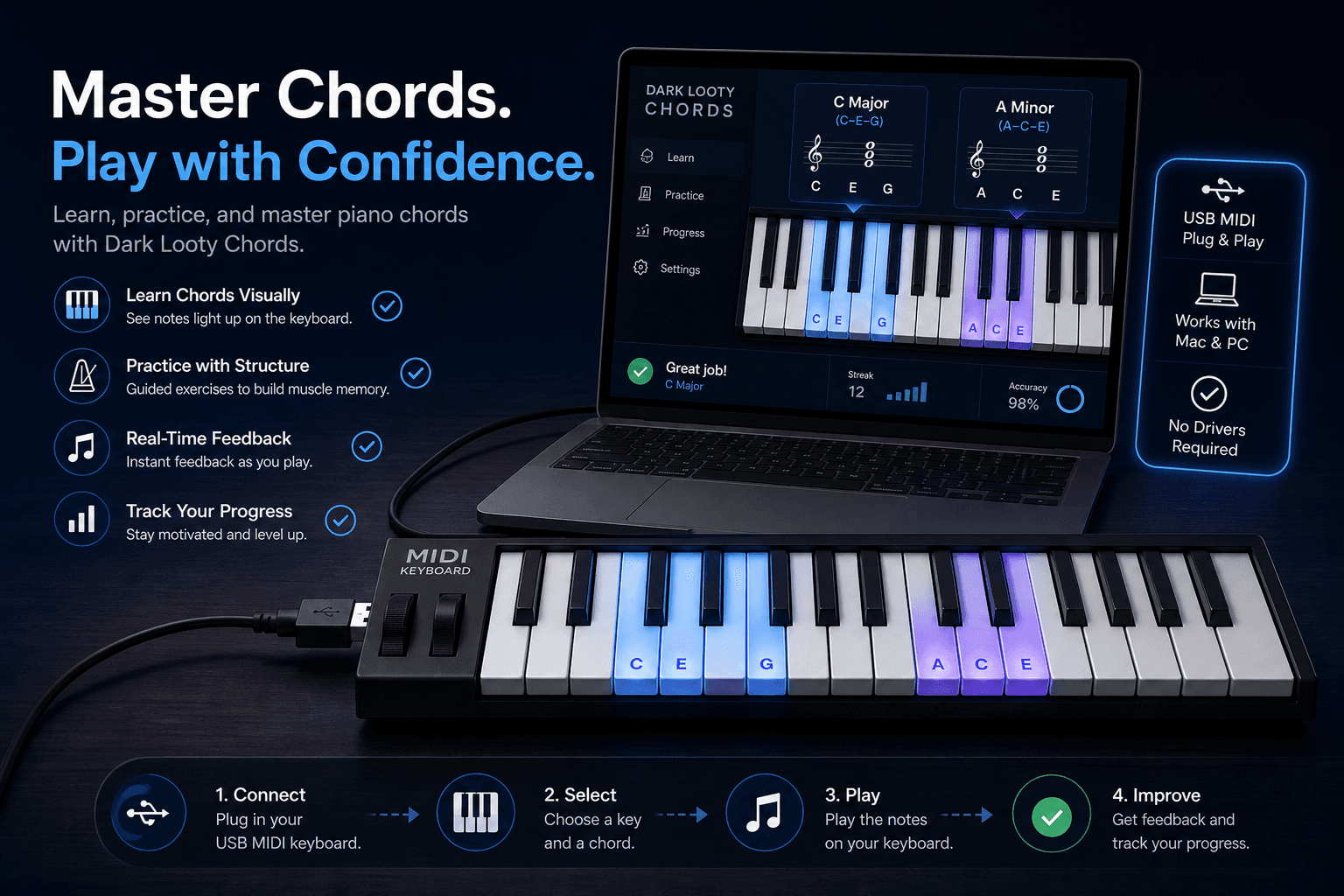
What You Need
A USB MIDI keyboard controller or a digital piano with USB-MIDI output. Most modern student keyboards include a USB port labeled for MIDI or computer connection.
A computer or tablet with a recent version of Google Chrome. Looty Chords MIDI features are built for Chrome where Web MIDI is reliably supported.
A Looty Chords account so you can open the practice screen after signing in.
How to Connect
- Plug your keyboard into your device with a USB cable (or USB hub if needed).
- Turn the keyboard on and wait for it to finish booting.
- Open Looty Chords in Chrome and go to the practice screen.
- When prompted, allow MIDI access in the browser if Chrome asks for permission.
- Select your keyboard if multiple MIDI devices appear, then start your session.
If your keyboard shows up as a MIDI input device in Chrome, it should work with Looty Chords. There is no separate driver install for most class-compliant USB MIDI devices on modern systems.
Getting the Most from MIDI Practice
Place your screen where you can see chord diagrams without craning your neck—many players use a tablet on the music stand.
Start at a slow metronome tempo until chord changes are clean, then increase speed gradually.
Practice the same randomized chord flow you would on screen-only mode; MIDI simply means you play real keys instead of mimicking shapes in the air.
Looty Chords supports practicing chords, inversions, and common progressions in real time when those features are enabled in your session.
If Your Keyboard Is Not Detected
Confirm you are using Chrome, not a browser without Web MIDI support.
Try a different USB cable or port—some cables are charge-only and do not carry data.
Disconnect other MIDI software that might be holding the device exclusively.
Restart the keyboard and refresh the Looty Chords practice page.
Visit our FAQs or contact support if the device works in other MIDI apps but not in Looty Chords—we can help narrow down the issue.
Connect your keyboard and start practicing
Use the interactive Chords tool to confirm shapes, then open Practice Mode with your MIDI keyboard connected for real-key training.