
The setup guide explains how a connection is supposed to work. This page is the list to use when a key press does not arrive. The checklist is only text. Opening this lesson does not ask the browser for MIDI access and does not listen for notes.
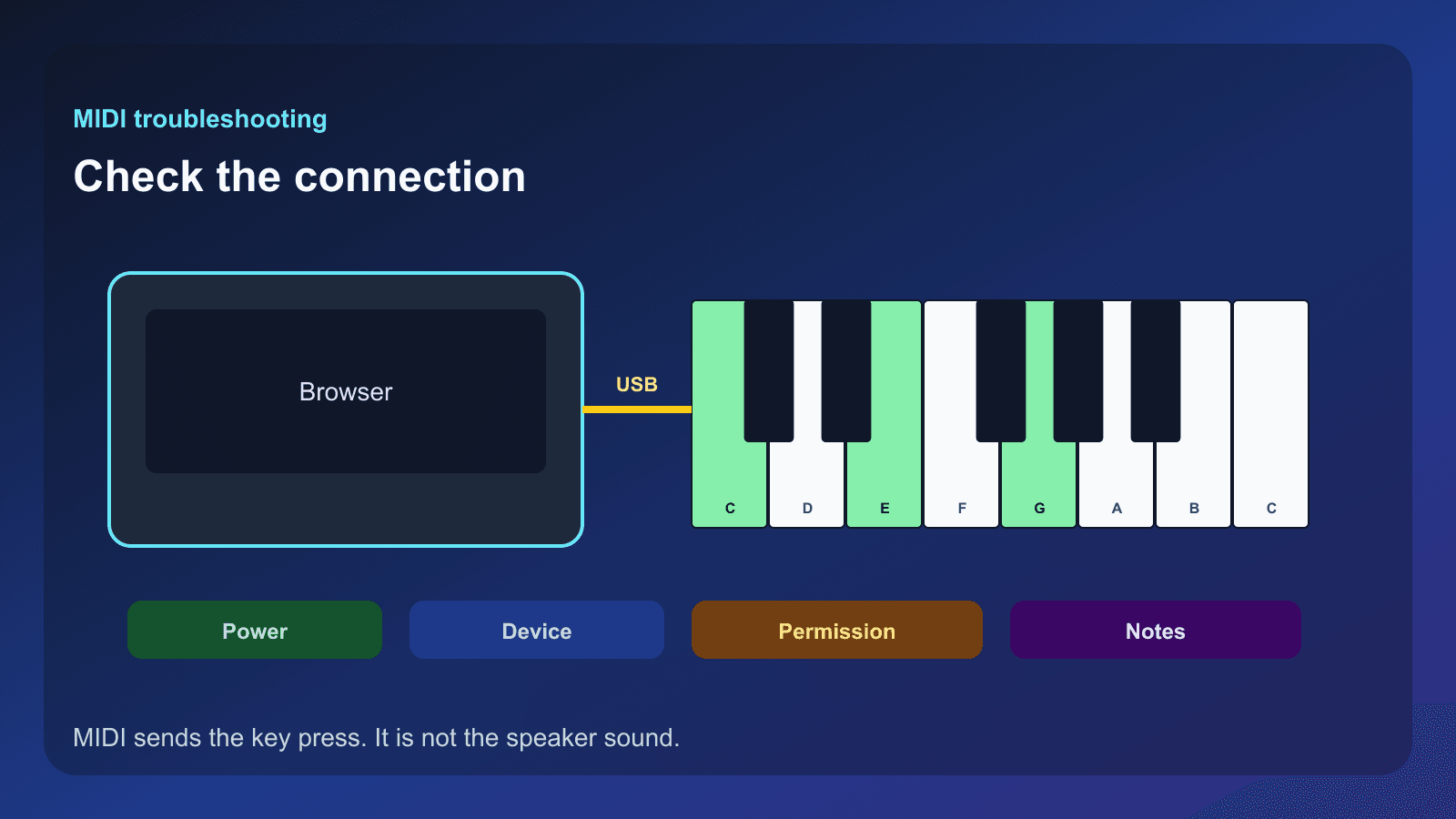
This checklist does not request MIDI access.
- Check the physical connection and power.
- See whether the computer recognizes the device.
- Check that this browser supports Web MIDI.
- Allow the MIDI permission for this site.
- Select the keyboard’s MIDI input.
- Press one note and watch for it.
- Reconnect, then repeat the checks that failed.
MIDI is not the piano sound
A MIDI keyboard sends the fact that a key went down, which key it was, and how hard it moved. The website turns that message into a highlighted note or a matched chord. The speaker sound still comes from the computer or from the on-screen piano samples. A silent keyboard can still be sending MIDI, and a keyboard that makes its own speaker sound can still be sending nothing to the browser.
The website looks for the browser’s Web MIDI function. If that function is missing, Chord Finder says that Web MIDI is not supported in this browser. The setup guide points computer users with a USB cable toward Chrome. This page does not claim that every browser, phone, tablet, Bluetooth keyboard, or USB keyboard works.
Seven checks, in order
First, check the physical connection and power. The cable should be seated, and the keyboard should be on if it has its own power. A USB MIDI cable is the connection this site is written for.
Second, see whether the computer lists the device at all. If the operating system does not see the keyboard, the browser cannot see it either. Reconnect the cable after the computer has finished noticing the device.
Third, check the browser. The site can ask for MIDI only when the page is served securely and the browser provides MIDI access. A browser without that function stops at the message above, and the on-screen piano still works.
Fourth, check the permission. When the browser has MIDI but the person denies it, or the request fails, Chord Finder says it could not access MIDI devices and tells you to check the browser permission. Allow MIDI for this site, then try the connection again.
Fifth, select the keyboard’s input. A computer can expose more than one MIDI port. Choose the keyboard you are holding, not a virtual port from another program.
Sixth, test one note. In Chord Finder or Go Practice, press a single key and watch for that note. If nothing arrives, go back to the cable, the permission, and the selected input before you change songs or settings.
Seventh, reconnect and retest. Unplug the keyboard, quit the permission prompt if it is still open, plug the keyboard back in, allow MIDI again, and choose the input again. One clean pass is more useful than several half-connected attempts.
When the notes arrive in the wrong octave
If the letter names are right and the practice page still marks the chord wrong, the keyboard may be sounding an octave away from the range the matcher expects. Go Practice can shift an uncalibrated keyboard by whole octaves so the chord tones line up. A calibration you already saved is left as it is.
Chord Finder keeps the note numbers it receives, so it is a useful place to see which key the computer actually reported. The on-screen piano is the fallback when you want to practice and the hardware connection is still unsolved.
The website and the phone apps are different connections
This checklist is for the Looty Chords website in a browser. The iOS and Android apps connect inside the app. They do not use the browser permission described here, and this page does not change how those apps work.
Continue with the MIDI keyboard setup guide and the recommended MIDI keyboards when you are choosing hardware. Chord Finder, Chord Explorer, and Go Practice all keep working from the on-screen piano. If the site itself is the problem, the contact page is the help route.
Start practicing piano chords with Looty Chords
Begin your free trial, compare plans, or read answers to common questions about chord practice and MIDI setup.